Published on April 12, 2026
How Do I Get Invoices from Amazon? Easy Guide
How do i get invoices from amazon? Learn the fastest way to find, download, and manage Amazon invoices for business records.
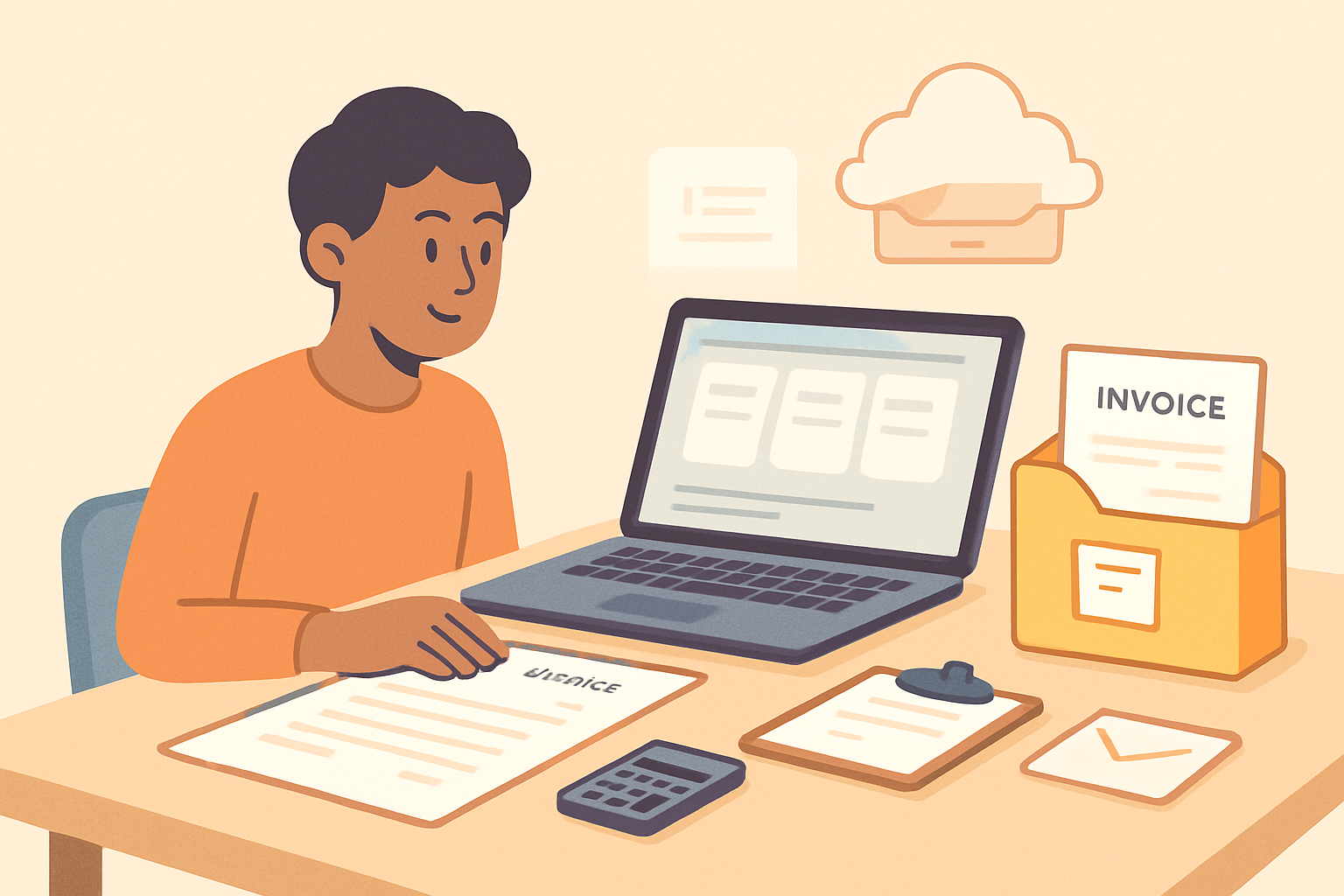
If we are asking how do i get invoices from amazon, the answer depends on the type of document we need and the seller behind the order. Amazon usually makes invoices easy to find, but the exact steps can vary by account type, marketplace, and order status.
In this guide, we explain where to find invoices, how to download them, what to do if one is missing, and how to keep purchase records organized for accounting and reimbursement. We also share practical tips that help us manage frequent orders without wasting time on manual follow-up.
Key Takeaways
- We usually find Amazon invoices in Returns & Orders, then open Order Details or Invoice.
- Invoice availability can vary by seller, marketplace, and order type.
- Downloading and saving invoices right away helps us with bookkeeping, reimbursements, and tax records.
- A simple folder structure or invoicing workflow makes frequent Amazon purchases easier to manage.
How Do I Get Invoices from Amazon?
To get invoices from Amazon, we usually start on the Orders page in our account. This is the fastest place to find a receipt or invoice for a recent purchase, especially when we need documentation for bookkeeping, expense reports, or tax records. After signing in, we open Returns & Orders, locate the order, and look for an option such as Invoice, Order Details, or Print invoice.
If the invoice option is available, we can open it and download or print the document right away. For business purchases, the invoice may include the seller name, order number, item details, and tax information. If we do not see an invoice button, we should check whether the order was sold by Amazon or by a third-party seller, since invoice availability can vary by seller and marketplace settings.
Here is the simplest process we can follow:
- Sign in to our Amazon account.
- Go to Returns & Orders.
- Find the order we need.
- Select Order Details or Invoice.
- Download, save, or print the document.
If we manage multiple purchases, it helps to keep invoices organized as soon as we download them. That makes it easier to match each invoice with the correct expense, customer project, or accounting record later.
Download, Print, or Email an Amazon Invoice
When we need an Amazon invoice, the fastest path is usually through the order details page. From there, we can download a PDF, print a copy for records, or email the invoice to the right person. The exact options may vary depending on the seller, the marketplace, and whether the order is for a business account or a personal purchase.
To get started, we log in to the Amazon account that placed the order and open Orders. Then we find the item we need and select Invoice, Order Details, or a similar link. If an invoice is available, we can usually view it directly in the browser and choose one of these actions:
- Download: Save the invoice as a PDF for bookkeeping, reimbursement, or tax records.
- Print: Open the invoice in print view and create a paper copy or a PDF from the print dialog.
- Email: Send the invoice to an internal finance inbox, a client, or an accountant if the order supports sharing.
If we do not see an invoice option, we should check whether the order was sold by a third-party seller. In some cases, the invoice is issued by the seller rather than Amazon, and we may need to request it separately. For business purchases, it also helps to confirm that the billing details, tax information, and company name are correct before we save the file.
For cleaner recordkeeping, we should rename the downloaded file with the order number, vendor name, and purchase date. That makes it easier to match the invoice to the payment later. When we handle many orders each month, keeping invoices organized in one place can save time and reduce manual follow-up.
When we need to share an invoice, we should send the PDF rather than a screenshot. A PDF preserves the full billing details and is easier to archive, search, and verify. If the invoice is missing or incomplete, we should contact the seller or Amazon support right away so we can correct the record before month-end close or expense reporting.
What to Do When an Amazon Invoice Is Missing or Incorrect
When we cannot find an Amazon invoice or the details on it do not match the order, we should act quickly. The fastest fix is usually to check the order record first, then request a corrected invoice or tax document through the account tools. In many cases, the issue is caused by a delay in invoice generation, a marketplace seller using a different billing format, or a mismatch between the shipping address, tax settings, or business account details.
We should start by opening the order and confirming the order number, item list, billing address, and seller name. If the invoice is missing, we can look for a downloadable invoice, order summary, or tax invoice in the order details page. If the document exists but is incorrect, we should compare it against the original order confirmation to identify the exact problem before contacting support or the seller.
Common invoice problems include:
- No invoice available: The seller has not uploaded it yet, or the order is still processing.
- Wrong billing details: The name, address, or tax information does not match our account.
- Missing tax information: The invoice does not show sales tax or other required charges.
- Incorrect item details: Quantities, product names, or prices do not match the order.
If the invoice is missing, we should contact the seller through the order page and request a proper invoice. If the order was fulfilled directly by the marketplace, we can use the account’s help or invoice request options to ask for a corrected document. When we write the request, we should include the order number, purchase date, and a clear explanation of what needs to be fixed. Keeping the message short and specific helps speed up the response.
If the invoice is incorrect, we should not edit it ourselves. Instead, we should ask for a revised version that reflects the correct order and billing information. For business purchases, it helps