Published on April 12, 2026
How to Create Invoices on PayPal Step by Step
How to create invoices on PayPal with clear steps, client details, and payment settings so we can bill faster and stay organized.
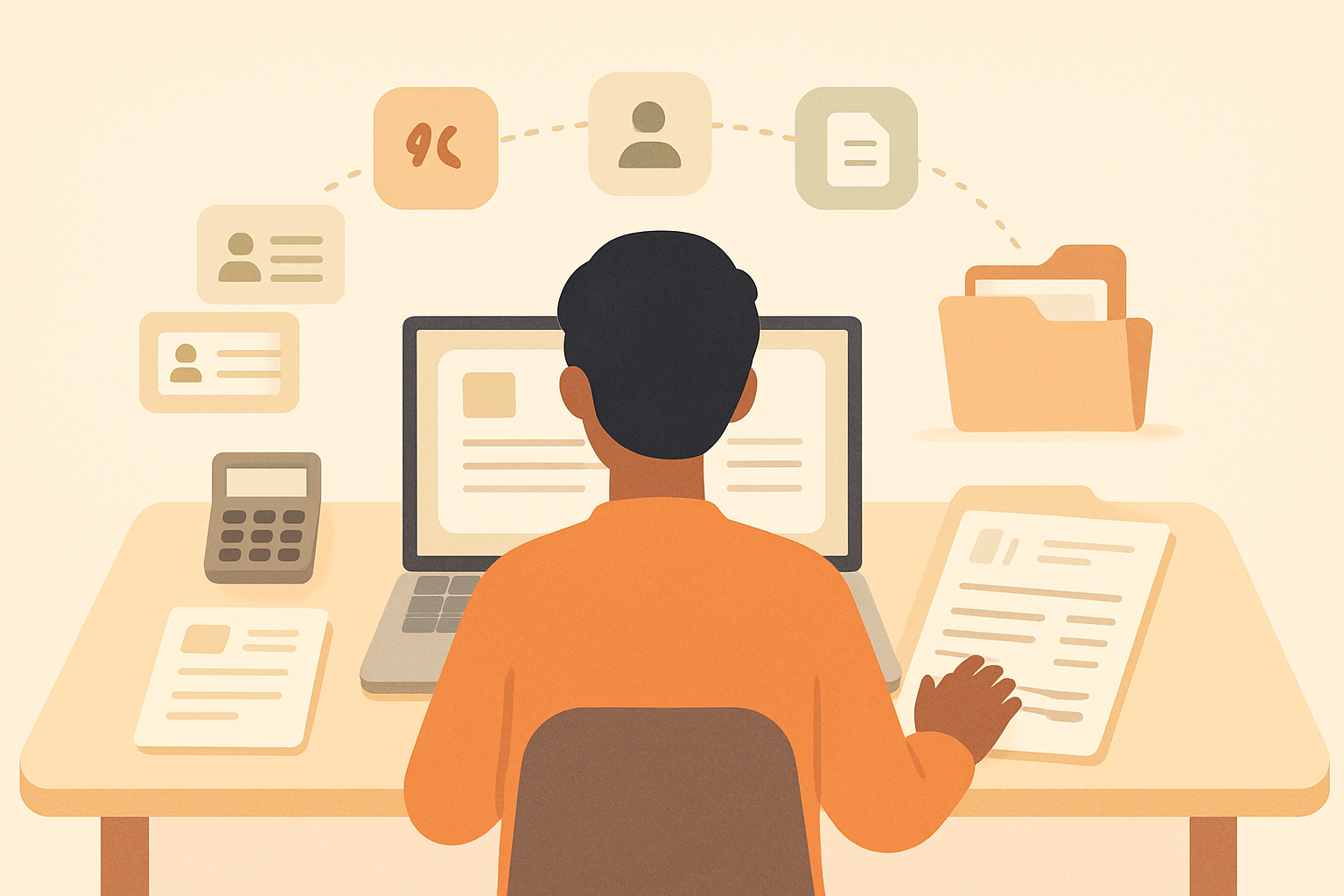
How to create invoices on PayPal is a useful skill when we want to bill clients quickly, track payments in one place, and reduce manual follow-up. For freelancers and small businesses, PayPal offers a familiar invoicing flow that we can set up in a few steps.
In this guide, we walk through the process from start to finish. We cover how to enter client details, add line items, customize invoice settings, and send the invoice for payment. We also share practical tips to help us avoid common mistakes and present a more professional billing experience.
Whether we invoice occasionally or manage recurring client work, understanding the basics of PayPal invoicing can make our payment process more efficient. If we want a more centralized way to manage quotes, invoices, and collections, ZenInvoice can help streamline that workflow further.
Key Takeaways
- We need a business PayPal account before we can create and send invoices.
- Accurate client details, line items, and payment terms help us avoid delays and confusion.
- Customizing branding, notes, and due dates makes invoices look more professional.
- Tracking invoice status after sending helps us follow up faster and manage cash flow.
How to Create Invoices on PayPal
To create invoices on PayPal, we first need an active business account and access to the invoicing tool. If we are using a personal account, we should upgrade or switch to a business profile before moving forward, since invoicing features are designed for business use.
Once we are signed in, we can open the invoicing area from the main dashboard. In most cases, this is found under the Payments or Tools menu, depending on the account layout. From there, we select Create Invoice to start a new draft.
Before we build the invoice, it helps to confirm that our account details are complete. We should review:
- Business name and contact information
- Logo and branding, if we want a more polished look
- Payment methods enabled for customers
- Currency settings for the transactions we plan to send
We should also make sure the customer information we plan to use is accurate. PayPal lets us save client details, which can speed up future invoices and reduce manual entry. If we bill the same customers often, this setup step saves time and helps keep records consistent.
At this stage, we are not sending anything yet. We are simply preparing the account so the invoicing process is smooth, accurate, and ready for the next step. A clean setup now makes it much easier to add line items, taxes, and payment terms later.
Add Client Details, Line Items, and Payment Terms
Once we open a new invoice, the next step is to add the details that make it clear, accurate, and easy for the client to pay. This is where we reduce back-and-forth and set expectations upfront.
We should start with the client’s name, email address, and billing information. If the invoice is going to a business, we can also include the company name, department, or purchase order number if needed. The more complete the contact details, the less likely the invoice is to get delayed or sent to the wrong person.
Next, we add each line item with enough detail to avoid confusion. For every product or service, we should include:
- A clear item name or service description
- The quantity or number of hours
- The rate or unit price
- The total amount for that line
We should keep descriptions specific but concise. For example, instead of writing “consulting,” we can write “monthly marketing strategy consulting” or “website design revision package.” Clear line items help clients understand exactly what they are paying for and make it easier for us to track revenue later.
After the items are entered, we need to set payment terms. This includes the due date, accepted payment methods, and any late fee policy if we use one. If we want faster payment, we can choose shorter terms such as due on receipt or net 7. If our business allows partial payments or deposits, we should state that clearly in the invoice notes or terms section.
We should also review the currency and tax settings before sending. If taxes apply, they need to be added correctly so the client sees the full amount due. A quick review at this stage helps us avoid corrections after the invoice has already been delivered.
When we take a few extra minutes to enter client details, line items, and payment terms carefully, we create a smoother payment process and present a more professional invoice.
Customize the Invoice for a More Professional Billing Experience
Once we have the basic invoice in place, the next step is to make it clear, accurate, and easy for the client to approve. A well-customized invoice does more than look polished. It reduces questions, speeds up payment, and helps us present our work in a more professional way.
We should start by reviewing the invoice details carefully. This includes the client name, billing address, invoice number, issue date, due date, and the list of products or services. Small errors can delay payment, so it is worth checking every field before sending.
Next, we can add a clear description for each line item. Instead of using vague labels, we should explain what was delivered, how much was charged, and whether the amount is fixed or based on hours worked. This makes the invoice easier to understand and reduces back-and-forth with the client.
We should also include any relevant payment terms. If we expect payment within a certain window, that should be stated clearly. If late fees apply, we should make that visible as well. Clear terms help set expectations and support faster collections.
To create a more professional billing experience, we can also use the available customization options to add a business logo, update the invoice title, and include a short note or thank-you message. These small details help reinforce our brand and make the invoice feel more intentional.
- Use precise line-item descriptions so clients know exactly what they are paying for.
- Confirm totals and taxes before sending to avoid disputes or corrections.
- Add payment instructions to make the next step obvious.
- Include a personal note when appropriate to keep the tone professional but approachable.
If we