Published on April 12, 2026
Invoice Template Excel: Free Download and Guide
Invoice template excel helps us bill faster, stay organized, and create professional invoices with less manual work.
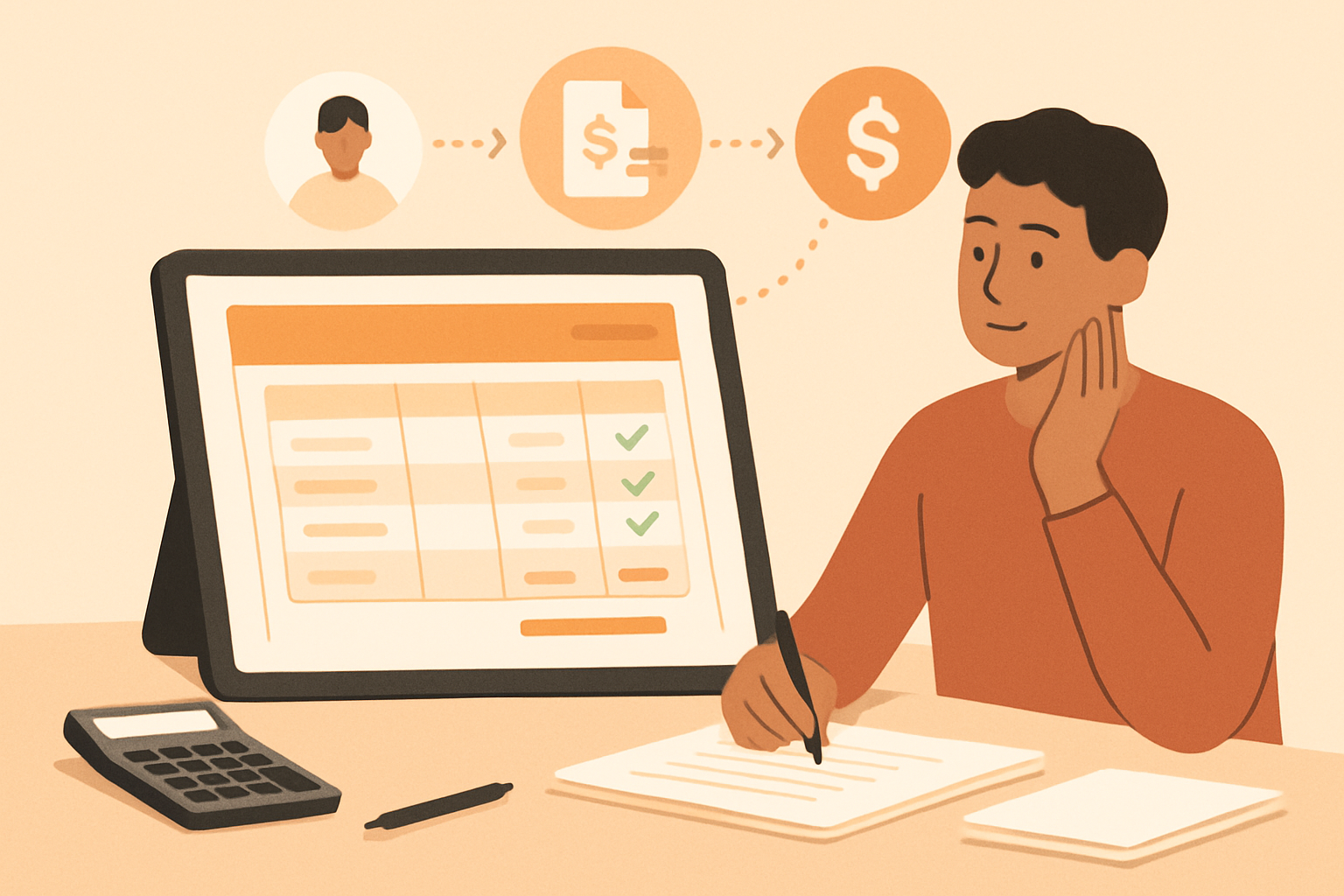
Invoice template excel can help us create professional invoices quickly, reduce manual errors, and keep billing consistent across clients and projects.
When we rely on a structured spreadsheet, we make it easier to calculate totals, apply taxes, track payment terms, and present a polished document that clients can understand at a glance. A well-built template also saves time because we do not have to rebuild the same invoice format for every job.
In this guide, we will explain what an Excel invoice template should include, how to use one effectively, and when it makes sense to move beyond spreadsheets. We will also cover practical tips for improving accuracy, speeding up billing, and keeping records organized as our business grows.
Key Takeaways
- An invoice template Excel should include business details, client information, invoice dates, line items, totals, and payment terms.
- Built-in formulas help us calculate subtotals, taxes, discounts, and balances due with fewer manual errors.
- A clean, flexible layout makes it easier to reuse the same template across clients, projects, and service types.
- When billing becomes repetitive or error-prone, automated invoicing can save time and improve cash flow.
What an Invoice Template Excel Should Include
When we use an invoice template Excel, the goal is to make billing faster without losing accuracy. A strong template should include the core details needed to identify the transaction, communicate payment terms, and reduce back-and-forth with clients. At a minimum, we should build in fields for our business name, client name, invoice number, invoice date, due date, and a clear line-item table for products or services.
We also need space for the information that helps clients pay on time. That includes item descriptions, quantities, unit prices, subtotal, taxes, discounts, and the final total due. If we work with recurring clients or project-based billing, it helps to add a notes section for scope details, payment instructions, or late fee terms. The more complete the template, the less likely we are to miss important billing information.
A practical Excel invoice template should also support easy calculations. Formulas for totals, tax, and balance due save time and reduce manual errors. We should make sure the layout is clean and easy to scan, with clear labels and enough room for multiple line items. If we invoice across different services or rates, a flexible structure will help us reuse the same file without rebuilding it each time.
- Business and client details: names, addresses, contact information
- Invoice identifiers: invoice number, issue date, due date
- Billing breakdown: itemized services or products, quantities, rates, totals
- Payment terms: accepted methods, due date, late fee policy
- Summary fields: subtotal, tax, discounts, total due, amount paid, balance remaining
We should also consider branding and usability. A simple logo, consistent colors, and readable fonts make the invoice look more professional, while protected cells can prevent accidental changes to formulas. If we want a more streamlined billing process, a well-built template can be a strong starting point before we move to a more automated invoicing system.
How to Use an Invoice Template Excel for Faster Billing
To use an invoice template Excel for faster billing, we start by turning the file into a repeatable workflow instead of a one-time document. The goal is to reduce manual entry, keep every invoice consistent, and make it easy to send bills as soon as work is complete.
First, we open the template and save a copy for each new client or project. This keeps the original file clean and gives us a working invoice we can update quickly. We then fill in the core details:
- Business information: company name, address, email, and phone number
- Client information: billing contact, company name, and payment details
- Invoice number: a unique number for tracking and recordkeeping
- Issue and due dates: clear dates that define the payment timeline
- Line items: services, quantities, rates, and totals
- Payment terms: accepted methods, late fees, and any deposit requirements
Next, we customize the line-item section so it matches the way we bill. For hourly work, we list hours and rates. For project-based work, we break the job into deliverables or milestones. If we bill recurring services, we keep the same structure each time so the invoice can be completed in minutes.
We also use formulas in Excel to save time and reduce errors. A good template should calculate subtotals, taxes, discounts, and grand totals automatically. That way, we only need to enter the service details, and the sheet handles the math. This is especially helpful when we invoice multiple clients or need to review totals before sending.
To make the process even faster, we recommend creating a simple naming system for saved files. For example, we can use the client name, invoice number, and billing month in the filename. This makes invoices easier to find later and helps us stay organized when following up on unpaid balances.
Before sending, we always review the invoice for accuracy. We check spelling, dates, totals, and payment instructions. A polished invoice builds trust and reduces back-and-forth with clients. If we send invoices often, we can also store a master copy of the template and duplicate it each time, which keeps formatting consistent across all billing.
For teams that want to centralize invoicing and reduce manual work, a spreadsheet template can be a strong starting point. As billing volume grows, we may also want a system that connects invoices, quotes, and collections in one place so we can keep the process moving without extra admin work.
Common Mistakes to Avoid When Editing an Excel Invoice Template
When we edit an invoice template Excel file, small formatting errors can create bigger problems than they seem. A clean template only works if we update it carefully and keep the structure intact. The most common mistakes usually come from changing formulas, overwriting labels, or leaving fields inconsistent across invoices.
One frequent issue is editing cells that contain formulas. If we replace a calculated total, tax amount, or balance due with manual numbers, we lose the automation that makes the template efficient. We should check which cells are meant for input and which cells are meant to calculate results. If the template uses formulas for discounts, tax, or payment totals, we need to