Published on November 05, 2026
Invoice Template in Google Docs: How to Set One Up
Invoice template google docs helps us create clean, editable invoices fast while keeping billing simple, consistent, and professional.
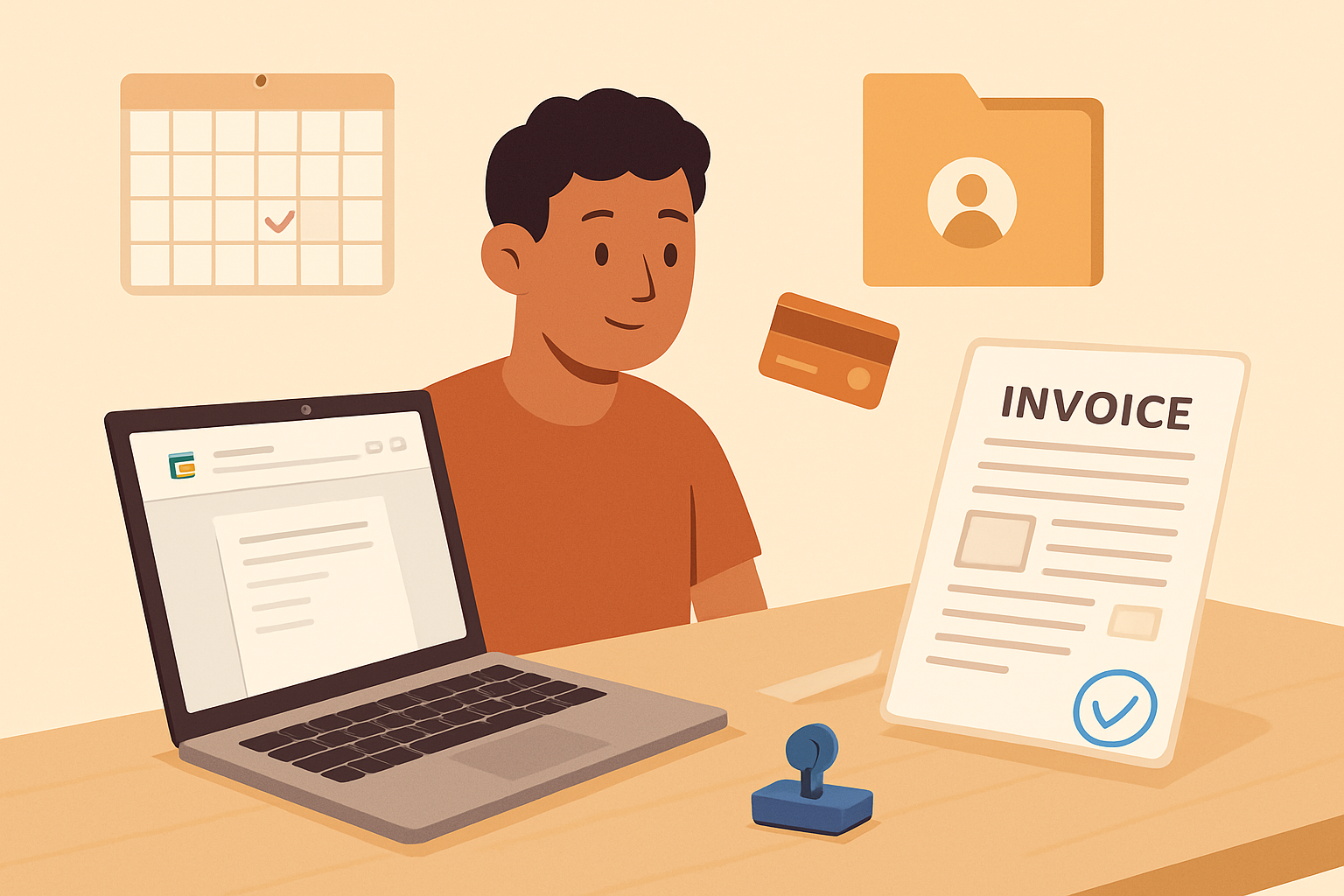
An invoice template google docs can help us create professional invoices quickly, without starting from scratch each time. For freelancers, small businesses, and growing teams, a simple editable template makes billing easier, keeps our documents consistent, and reduces the chance of missing important details.
When we use Google Docs, we can access invoices from anywhere, share them with teammates, and update them in real time. That flexibility matters when we need to send accurate invoices fast and keep cash flow moving. In this article, we show how to choose, customize, and use a free invoice template in Google Docs so our billing process stays organized and efficient.
Key Takeaways
- Google Docs gives us a fast, low-cost way to create editable invoices that stay consistent across clients and projects.
- A strong template should include clear branding, itemized charges, payment terms, due dates, and contact details.
- Customizing fonts, colors, and layout helps us look professional while keeping the invoice easy to read.
- Saving and sharing templates in a cloud folder makes it easier for teams to duplicate, update, and send invoices quickly.
- Tracking sent invoices and following up on overdue payments helps us protect cash flow and reduce manual work.
Why an Invoice Template in Google Docs Works for Small Businesses
An invoice template Google Docs gives us a simple way to create professional invoices without adding extra software or a steep learning curve. Because Google Docs is cloud-based, we can access the same file from any device, make quick edits, and keep our billing process moving even when we are away from the office.
For small businesses, that flexibility matters. We can update client details, line items, payment terms, and due dates in minutes, then save the invoice as a PDF or share it directly. This makes it easier to send accurate invoices quickly, which helps reduce delays and keeps cash flow more predictable.
Google Docs also works well when we need a lightweight system that multiple team members can use. We can store templates in a shared drive, duplicate them for each new job, and maintain a consistent format across all invoices. That consistency helps us look organized and makes it easier for clients to review and pay.
Here are a few reasons this format is practical for small businesses:
- Easy to edit: We can change pricing, descriptions, and client information without starting from scratch.
- Accessible anywhere: We only need an internet connection and a Google account to work on invoices.
- Low cost: We can create and manage invoices without paying for a complex billing platform right away.
- Simple collaboration: Team members can review or update templates in one shared location.
- Professional presentation: We can build a clean, branded invoice that supports trust and clarity.
For businesses that are just getting organized, this approach can be a strong starting point. It gives us enough structure to bill clients properly while staying flexible as our process evolves. If we later need more automation, tracking, or payment follow-up, we can move to a dedicated invoicing tool without changing the core way we think about invoicing.
How to Customize an Invoice Template Google Docs for Your Brand
When we customize an invoice template Google Docs for our brand, we want every invoice to look consistent, professional, and easy to recognize. The goal is not just to make it attractive. We also want to make it clear who sent the invoice, what services were provided, and how the client should pay. A well-branded invoice helps reduce confusion and supports faster payment.
We can start by updating the visual elements that clients notice first. That usually includes the logo, brand colors, font choices, and contact details. In Google Docs, these changes are simple to make, but they should still follow a clear brand standard so every invoice looks the same across our business.
Key brand elements to update
- Logo placement: Add our logo near the top of the invoice so the document is immediately identifiable.
- Color palette: Use one or two brand colors for headings, lines, or highlights. We should avoid using too many colors, which can make the invoice look cluttered.
- Typography: Choose clean, readable fonts that match our brand style and remain easy to scan on screen or in print.
- Business information: Include our business name, address, email, phone number, and website in a consistent location.
- Payment details: Make sure payment instructions are easy to find, including accepted methods and due date terms.
We should also tailor the layout to fit the way we work. For example, service-based businesses may want more space for descriptions, while product-based businesses may need more room for quantities, unit prices, and totals. If we send recurring invoices, it helps to keep the structure simple so we can update only the details that change.
Another important step is adjusting the wording to match our brand voice. A formal business may use concise, polished language, while a creative agency may prefer a more approachable tone. Even small changes, such as the label for the payment section or the note at the bottom, can make the invoice feel more aligned with our business.
We should also make the template easy to reuse. That means locking in the core design and saving a master version before editing individual invoices. This reduces mistakes and keeps our branding consistent over time. If we manage many invoices, a centralized invoicing workflow can save even more time by keeping client details, quotes, and collections connected in one place.
Finally, we should test the template before using it with clients. We can preview it on desktop and mobile, check spacing, and confirm that all text is readable. A branded invoice should look polished, but it should also be practical. When we balance design with clarity, our invoices feel more trustworthy and are easier for clients to pay quickly.
What Every Editable Invoice Template Should Include
When we use an invoice template Google Docs file, the goal is not just to make an invoice look clean. We need every editable template to capture the details that help us bill accurately, get paid faster, and reduce back-and-forth with clients. A strong template should make the invoicing process simple without leaving out the information that supports payment and recordkeeping.
At a minimum, every editable invoice template should include these core elements:
- Business information: Our company name, address, email, phone number, and logo if needed.
- Client information: The client’s name, company name, billing address, and contact details.
- Invoice number: A unique identifier that helps us track each invoice and reference it later.
- Invoice date: The date we issue the invoice so payment timing is clear.
- Due date: A specific deadline that tells the client when payment is expected.
- Line items: A clear list of products or services, with descriptions, quantities, rates, and totals.
- Subtotal, taxes, and discounts: A breakdown that shows how we calculated the final amount due.
- Total amount due: The final balance the client needs to pay.
- Payment terms: Notes on accepted payment methods, late fees, or any special instructions.
We also recommend including a short notes section. This space can be used for project references, thank-you messages, deposit reminders, or other details that help prevent confusion. If we work with recurring clients, a template should be easy to duplicate and update so we can keep the same structure while changing only the invoice-specific details.
Another important feature is editability. A good template should let us adjust fields quickly without breaking the layout. That matters when we need to customize invoices for different services, billing cycles, or client requirements. The more flexible the template, the less time we spend reformatting and the more consistent our invoices stay.
We should also make sure the template supports clarity. Simple spacing, readable fonts, and a logical order of information help clients review the invoice faster. When the layout is easy to follow, we reduce the chance of payment delays caused by missing or unclear details.
Best Practices for Sending, Tracking, and Following Up on Invoices
To keep cash flow steady, we need a simple invoicing process that is consistent from the moment we send an invoice to the moment payment clears. A well-built invoice template Google Docs file helps us standardize the basics, but the real value comes from how we use it. We should send invoices as soon as work is complete or according to the agreed billing schedule, because delays often lead to delayed payment.
Before sending, we should always confirm that the invoice includes the right client name, project details, due date, payment terms, and a clear total. Small errors can slow down approval and create unnecessary back-and-forth. It also helps to add a short, professional note that thanks the client and points them to the payment method or contact person if they have questions.
Tracking is just as important as sending. We should maintain a simple record of every invoice, including the issue date, due date, amount, and payment status. This can be done in a spreadsheet, a shared tracker, or invoicing software. The goal is to know at a glance which invoices are pending, overdue, or paid so we can follow up without guesswork.
When an invoice is approaching its due date, a polite reminder can prevent late payment. If the due date passes, we should follow up promptly and keep the message clear and respectful. A good follow-up sequence usually includes:
- A reminder a few days before the due date
- A brief notice on the due date
- A firmer follow-up after the invoice becomes overdue
- A final message that requests a payment update or revised timeline
We should also make it easy for clients to pay. Clear payment instructions, multiple payment options when possible, and a visible due date reduce friction and improve response time. If we work with repeat clients, we can save time by reusing a consistent invoice format and updating only the project-specific details.
For teams that want to reduce manual work, a centralized system can help connect invoicing, client records, and collections in one place. That makes it easier to stay organized, follow up consistently, and get paid faster without relying on scattered documents or memory alone.
A faster alternative to Google Docs
If you would rather not build and format a document yourself, the ZenInvoice free invoice generator gives you the layout and the math. You get 20 templates, line items that add up taxes and totals for you, and a one-click PDF download. No sign-up, and your draft stays saved in your browser.
Frequently asked questions
In this FAQ we answer:
- Can we use a Google Docs invoice template for recurring client billing?
- How do we make an editable invoice template easier for clients to read?
- Is a Google Docs invoice template enough for growing invoicing needs?
Can we use a Google Docs invoice template for recurring client billing?
Yes. We can duplicate the same invoice template in Google Docs for each billing cycle, then update the client name, dates, line items, and totals. This keeps recurring billing consistent and reduces manual formatting work.
How do we make an editable invoice template easier for clients to read?
We should keep the layout simple, use clear labels, and separate key details like invoice number, due date, services, and total amount. A clean structure improves readability and helps clients process payment faster.
Is a Google Docs invoice template enough for growing invoicing needs?
It works well for basic invoicing, especially for freelancers and small teams.